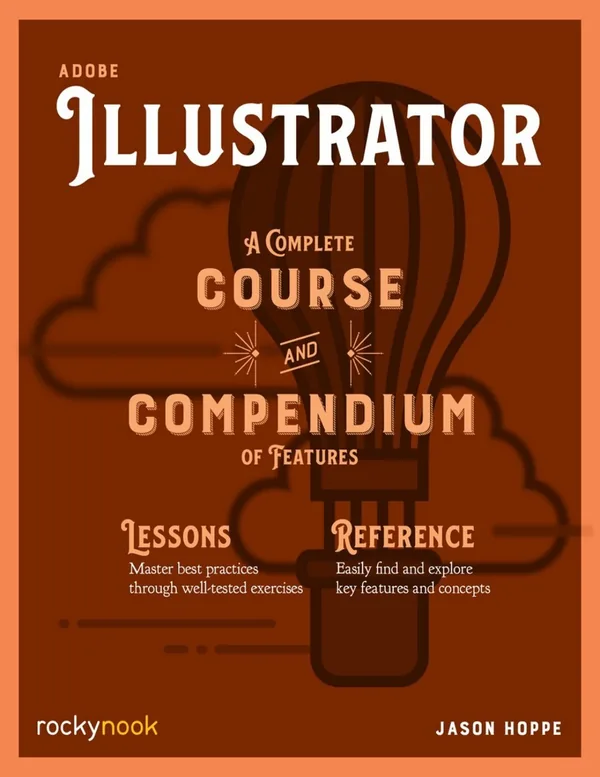
Adobe Illustrator: A Complete Course and Compendium of Features
By Jason Hoppe
About this ebook
Jason Hoppe's Adobe Illustrator combines project-based instruction with a reference to the application's tools and features. The course covers vector drawing, color, typography, layers, effects, and production, while the compendium supports topic-based consultation. It is intended for design students, self-taught creatives, and working designers learning or reviewing Illustrator techniques.
Inside this title
Project-based Illustrator course paired with a feature reference
Current listed price $10.99Regular price $19.00Digital ebook
The course section introduces Illustrator through a sequence of practical projects. Drawing and editing paths lead into shape tools, color, gradients, patterns, and the Appearance panel. Typography topics include type on a path, area type, and other controls used to organize lettering within vector artwork.
Layers, masks, symbols, brushes, blends, and effects extend the range of illustration and design techniques. Export and production preparation connect the artwork with its intended use in print or on screen. Alongside the lessons, the compendium organizes features for later reference. This two-part structure supports both readers working through a course and designers looking up a specific tool or operation as they work.
Study guide included
Inside Adobe Illustrator: A Complete Course and Compendium of Features.
Adobe Illustrator: A Complete Course and Compendium of Features pairs short project-based lessons with a reference organized by tool. Jason Hoppe helps design students, self-taught creatives and working designers build vector artwork and then find the exact control needed to refine it.
The course begins with preferences, workspaces and artboards, then builds illustrated objects from simple shapes, highlights and color. The compendium expands on those projects through layers, path construction, transformation, effects, type and output. Readers can work a project start to finish, then jump to a specific feature when a design needs adjustment. Underneath both parts runs the distinction between vector geometry and the appearance applied over it, which is why a finished look and an editable structure are treated as separate concerns.
A predictable document setup
Units, guides, display settings and panels are chosen to suit the project, with document-specific settings distinguished from global preferences so a one-off change does not quietly become a default. A saved workspace keeps frequently used controls in reach. Artboards define output areas, while layers and groups organize content; naming and locking deliberately makes a crowded file searchable, and staging objects on the pasteboard must be checked before delivery.
Match the environment to the work
Separate artboards from layer structure
Lock and name before the file gets crowded
The Course · Build with a Solid Base; Compendium · Preferences and Workspaces
Geometry from simple forms
The apple and spray-can projects begin with basic forms and add arcs, highlights and repeated shapes, since proportion is easiest to judge before detail is added. Pathfinder can unite, subtract or divide regions, Shape Builder works directly on overlapping areas, and Live Paint lets color follow bounded regions. After combining, the result is inspected: a clean silhouette may serve the next step, while keeping the original parts preserves options.
Build recognizable structure first
Decide what an overlap should become
Keep components when geometry may change
The Course · Colors and Gradients projects; Compendium · Shape Creation and Advanced Construction
Editing paths and placing objects
Pen and Curvature tools define paths, and Direct Selection reaches points and segments for local change while direction handles govern curves and the transition between neighbors. Only as much detail as the drawing needs is used, because a clean curve survives scaling and alignment better than one built from dozens of nudges. Transformations rotate, reflect and resize around a known reference, with key-object alignment and guide spacing controlling relationships.
Identify whether contour or placement is wrong
Use only the path detail required
Transform around a defined reference point
The Compendium · Advanced Construction and Editing and Transformation
Color, effects and visibility
Appearance settings change what an object looks like without altering its outline, so fills, strokes and opacity are set and inspected through the proper controls. Graphic styles repeat a treatment, and gradients, patterns, symbols and blends offer reusable transitions or repeated forms whose scale must be checked on small versions. A clipping mask sets a boundary, an opacity mask varies visibility inside it, and expanded effects trade editability for a different structure.
Keep fill and stroke decisions visible
Choose clipping or opacity masks by purpose
Review expansion against the master file
The Compendium · Effects and Graphic Styles and Working with Color
Typography as editable content
Point type suits short labels, area type fills a defined shape, and type on a path follows a guide, so the choice depends on whether words must wrap, align or curve. Tracking adjusts spacing across a selection, kerning addresses individual character pairs, and leading sets vertical rhythm. Tabs, wrapping and threading support structured text. Decisions are tested in the whole composition, and an editable master is kept when a workflow eventually needs outlined type.
Choose point, area or path type by role
Refine spacing at final size
Keep an editable master before outlining
The Compendium · Type and Text
Preparing artboards and color for output
Screen and print work may use different color models and requirements, so process and spot colors are separated and the appearance of black is examined: a rich black on screen can separate into several inks. Production specifications guide the chosen values. The delivery area is the artboard, while layers and pasteboard may hold editing material, so intended artboards, boundaries, dimensions and crop are checked against how the recipient will use the file.
Check color against the reproduction method
Confirm which artboards will ship
Compare the proof with the editable master
The Compendium · Working with Color and Output
Chapter and section map
Build with a Solid BaseCourse
Colors and Gradients projectsCourse
Shape Creation and Advanced ConstructionCompendium, chs. 2–3
Editing and TransformationCompendium, ch. 4
Effects and Graphic Styles and Type and TextCompendium, chs. 5–6
Working with Color and OutputCompendium, chs. 7–8
Key takeaways
Organize artboards, layers and selection deliberately before a design file becomes crowded and hard to revise.
Separate path construction from appearance so contour and palette changes stay manageable.
Review intended artboards and color reproduction before handing off an output file.
Design students, self-taught illustrators and working designers who want project practice and a feature reference in the same volume for everyday production, revision and print preparation.
Topics covered
Adobe Illustrator
vector drawing
Pathfinder
Shape Builder
pen tool
typography
graphic styles
print output
Questions about this ebook.
Edition, audience, and study-guide details at a glance.
What is Adobe Illustrator: A Complete Course and Compendium of Features about?
Jason Hoppe's Adobe Illustrator combines project-based instruction with a reference to the application's tools and features. The course covers vector drawing, color, typography, layers, effects, and production, while the compendium supports topic-based consultation. It is intended for design students, self-taught creatives, and working designers learning or reviewing Illustrator techniques.
Who is Adobe Illustrator: A Complete Course and Compendium of Features for?
Design students, self-taught illustrators and working designers who want project practice and a feature reference in the same volume for everyday production, revision and print preparation.
Does this page include a study guide?
Yes. This page includes an original study guide with six thematic sections, key takeaways, and a chapter and section map for structured reading.